Create and Manage Recurring Transactions
It's easy to create and manage recurring transactions in Rentec Direct. Once created, recurring transactions continue posting on the schedule you choose until they're edited, deleted, or the tenant moves out.
Before You Begin
Recurring rent charges are automatically created when you move a tenant into a property. In most cases, you don't need to create a separate recurring rent charge manually.
- You can create recurring transactions when posting:
- Charges to a tenant ledger
- Expenses to a Property ledger
- Most recurring transactions should not have an end date. Leaving the end date blank prevents recurring charges (such as rent) from stopping unexpectedly between lease renewals.
- If you choose to use an end date, be sure to set it after the final scheduled posting date to ensure the last transaction is posted.
Tip: Click here for step-by-step instructions on Posting an Income, Charge, or Expense Transaction.
Create a Recurring Transaction

In your Rentec Direct account:
- Click Tenants to create a recurring tenant charge or Properties to create a recurring property expense
- Right-click the tenant or property
- Select Post Charge or Post Expense
-
Enter the transaction details
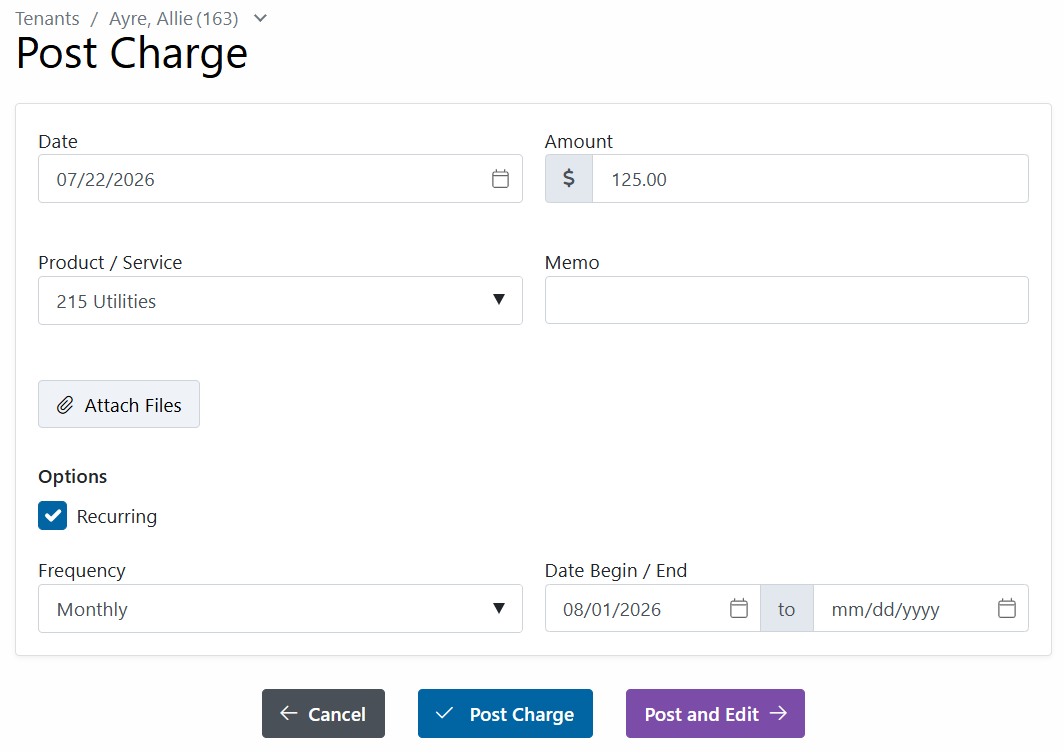
- Select Recurring
- Choose the transaction Frequency
- Enter the Begin Date (if needed, an End Date)
- Click Post Charge or Post Expense
Edit a Recurring Transaction
In your Rentec Direct account:
- Click Settings
-
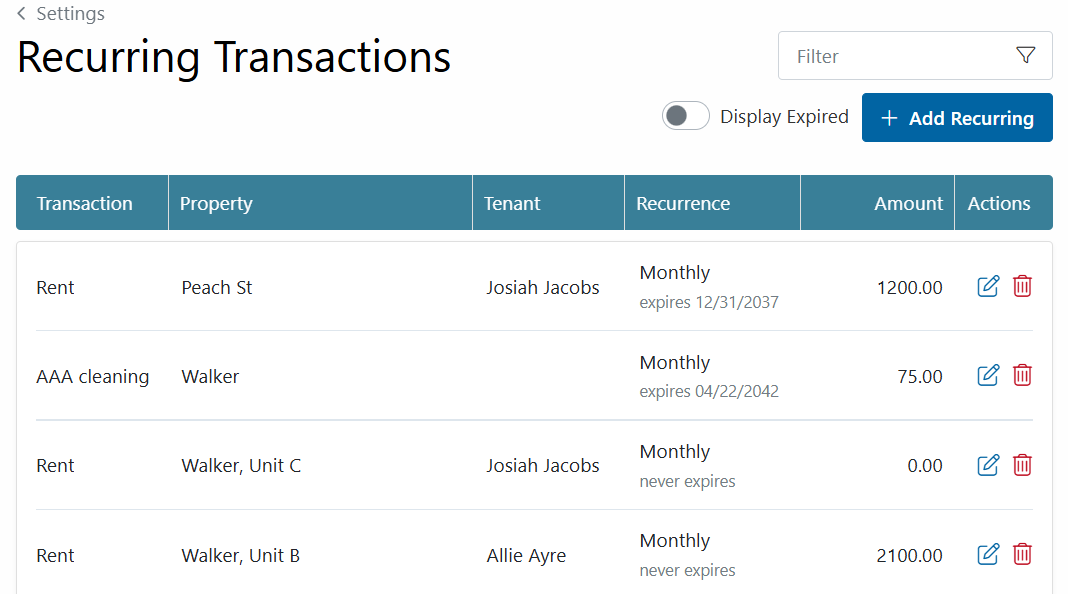
Under Financial, select Recurring Transactions
-
Enter a term or number in the filter to narrow down your search
Tip: If you're troubleshooting missing transactions, click on Display Expired
- Click on the Edit pencil icon
- Make the necessary changes
- Click Update Transaction
Important Notes:
- Be careful when editing or deleting recurring rent charges. These transactions control your tenant's automatic rent posting.
- The Recurring Transactions page is intended for reviewing and editing existing transactions. New recurring transactions should be entered directly to the tenant or property ledger.
Delete a Recurring Transaction
In your Rentec Direct account:
- Click Settings
- Under Financial, select Recurring Transactions
- Enter a term or number in the filter to narrow down your search
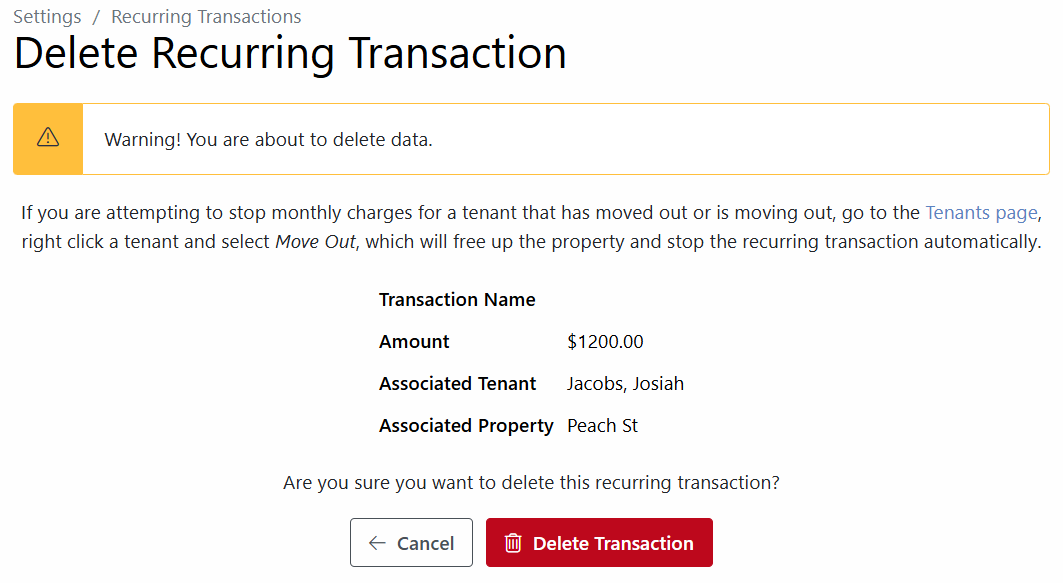
- Click the Trash can icon to delete
- Review the caution about deleting, then click Delete Transaction to confirm or Cancel to exit the screen