
Understanding Bank Related Transactions
Rentec Direct is designed to ensure accurate accounting and eliminate duplicate data entry.
Bank-related transactions can either be all the income that flows from the tenant and property ledgers, all the expenses from the property ledger, or adding a transaction directly to the bank ledger.
Income transactions
Tenant ledgers: Rent, late fees, and income from additional charges will automatically post to their assigned property and bank ledgers
Owner Contributions: will automatically post to their assigned property and bank ledgers
Expense transactions
Property ledgers: will automatically post to their assigned bank ledger
Delayed or Pending Transactions
In addition, a few tools in the software, if used, will allow you to enter transactions that will not affect the bank ledger or bank ledger note section until you are ready. There are knowledge base articles that will guide you through these.
Examples of times you may want to document an income or expense, but not add the amount to the ledger balance:
-
Undeposited Funds - Physical payments received, but not yet deposited into the bank.
-
Management Fees - Management fees that have been automatically deducted from property ledgers but not yet paid to the manager. This prevents accidental overpayments to property owners until the Manager is paid at their agreed interval.
- Checks Printing - There are a couple of reasons why checks may be pending being printed
- To ensure accurate alignment and check information, the software requires you to verify that a check is printed correctly
- If your company prints selected checks at different intervals
Identifying Pending Transactions
It's easy to see when entries have been started and not yet saved.
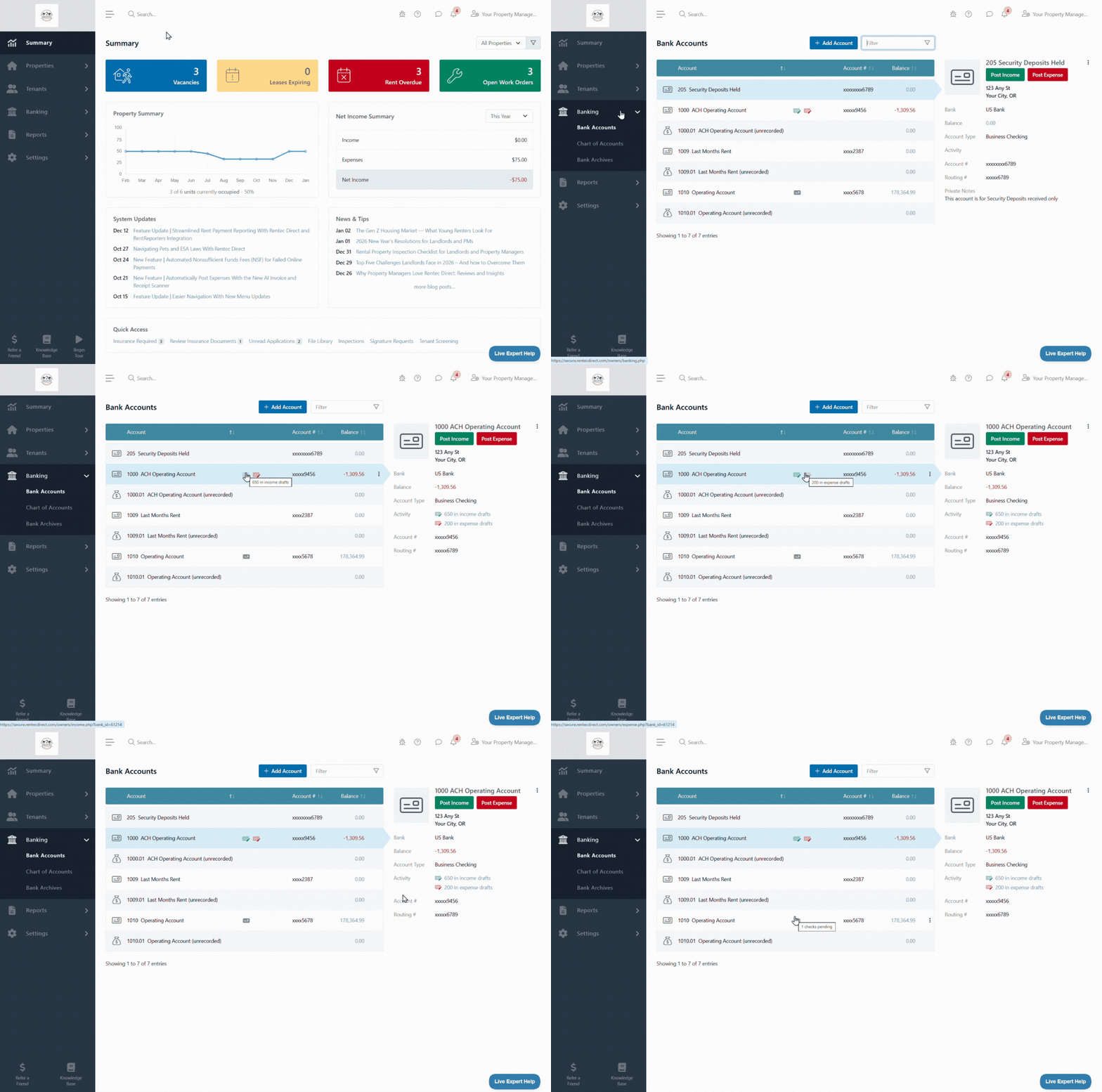
In your Rentec Direct account:
- Click on Banking
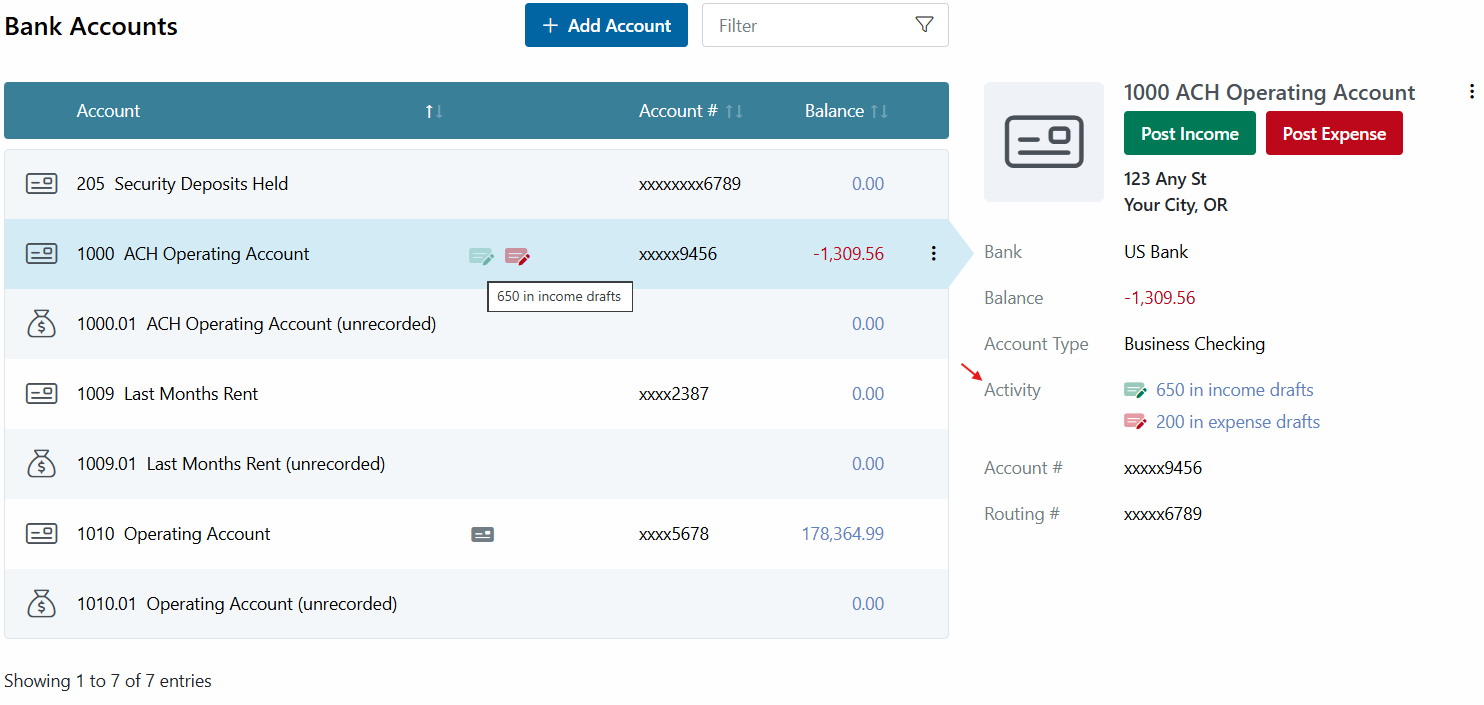
- When entries have been started and not yet saved, you will see an icon on the Bank row and the Bank Card
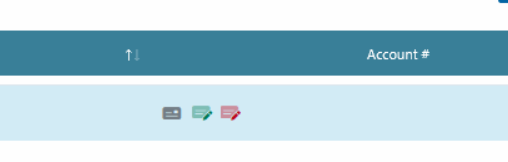
- There are three possible icons. Click any icon to complete the transaction.
- A gray check icon indicates pending checks
- A green icon indicates Income drafts
-
A red icon indicates Expense drafts
Data Entry Support Tools
There are additional tools located in Banking for data-entry support and automatically saving notes/reports:
These tools are considered advanced, and we've created specific Knowledge Base instructions to help you with these processes. More information can be found here:
-
Enter multiple transactions
-
Automatically import transactions from your Bank
-
Monthly Bank Account Reconciliation will automatically create a report that is stored in the Bank Notes
Bank Only Related Transactions
In addition to the flow of transactions from the tenant and property ledgers to the corresponding bank ledger, there are a few occasions where you will manually post a transaction to a bank ledger.
For example, tracking business income and expenses not related to a property, like banking and professional fees, as well as making credit card payments.
More information can be found here: