Getting Started with Rentometer Rent Comparisons
Before using Rentometer in Rentec Direct, enable the integration in your account. Once enabled, Rentometer links will be available from the Edit Property, Edit Tenant, and Update Lease pages.
Note: Open API & Software integrations are available with Rentec Pro and PM subscriptions and isn't included with Rentec Starter. If you'd like to have access to this feature, you can upgrade your subscription at any time. See How to Change Your Rentec Direct Subscription for step-by-step instructions.
Enable the Rentometer Integration
In your Rentec Direct account:
- Click Settings
- Under Program, select Program Defaults
- Scroll to the Integrations section
- Set Enable Rentometer Integration to Yes
- Click Save Changes
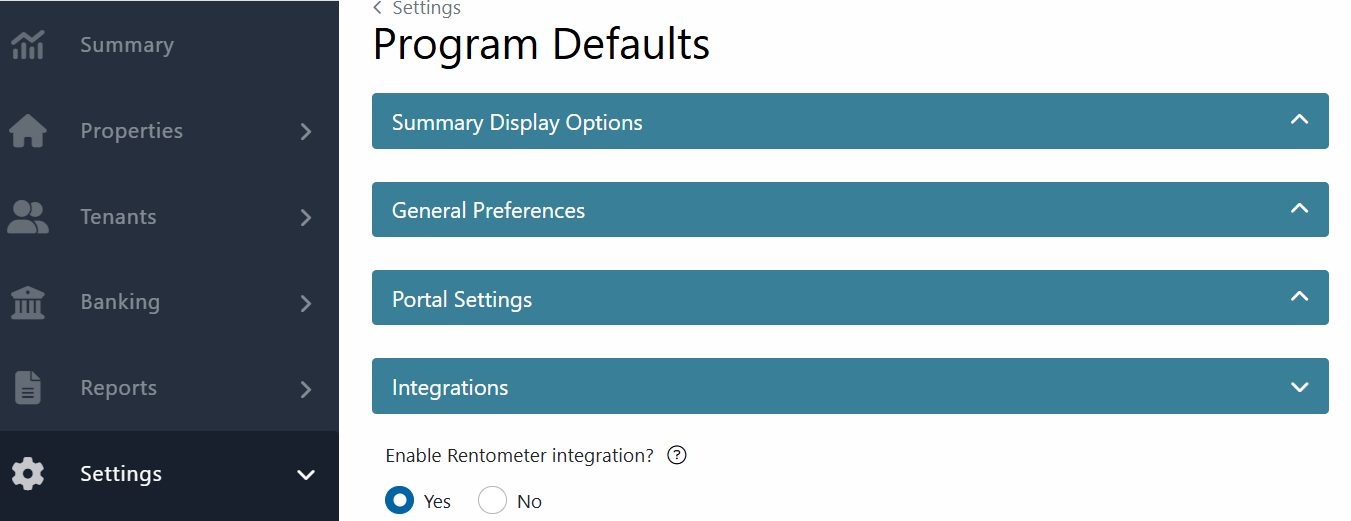
Once enabled, Rentometer links will appear throughout your software where comparable rental prices can be reviewed.
Review Rental Pricing from Edit Property
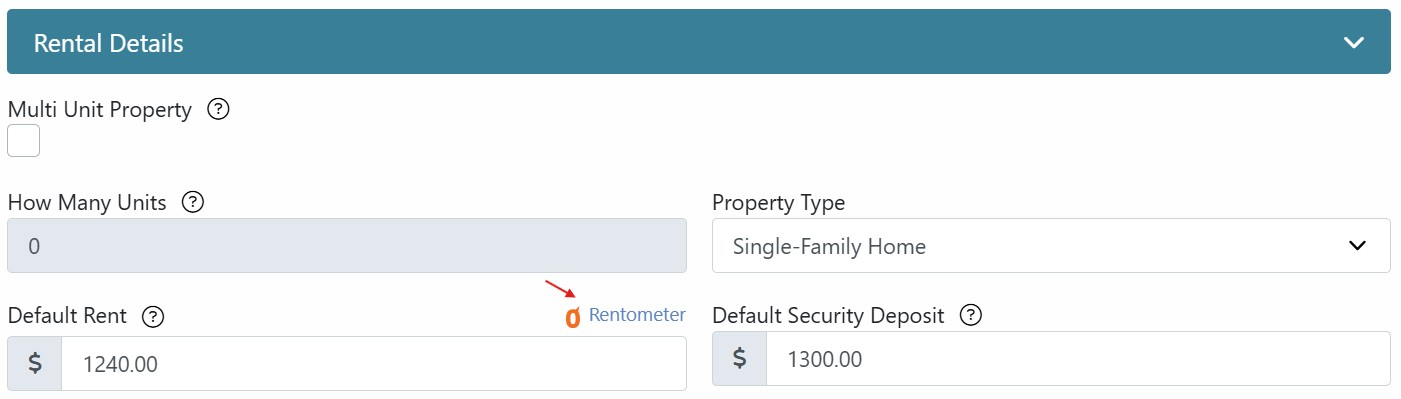
Compare your property's default rent with similar rentals in your area and quickly apply a suggested rental rate.
In your Rentec Direct account:
- Click Properties
- Right-click a property and select Edit Property
-
Click the Rentometer link next to Default Rent
-
Review the comparable rental rates
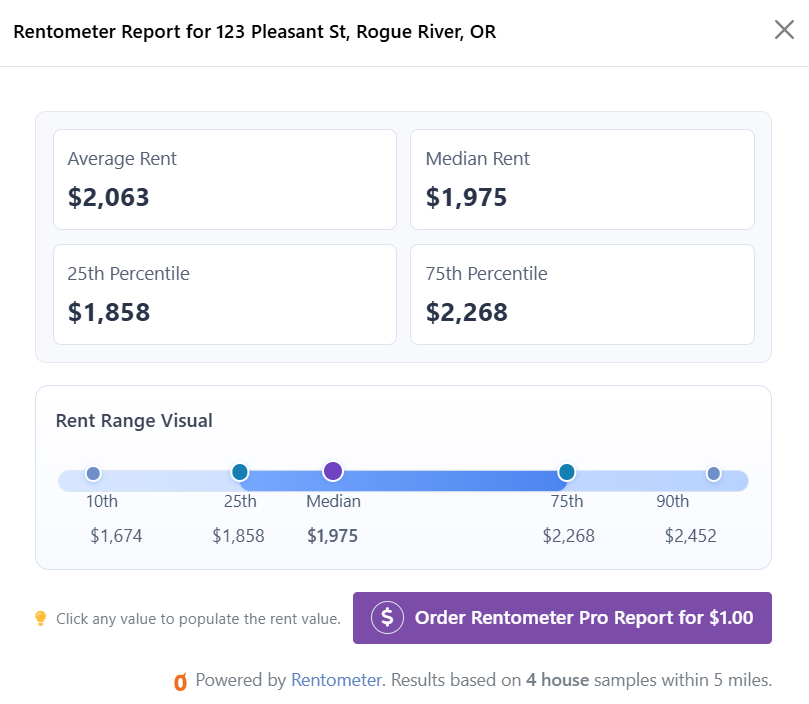
- Click on a suggested rate to automatically populate the Default Rent field
- Click Update Property
Note: For multi-unit properties, be sure to update subunits as needed.
Review Rental Pricing from Edit Tenant
Compare a tenant's current rent with similar rental properties in the local market.
In your Rentec Direct account:
- Click Tenants
- Right-click a tenant and select Edit Tenant
- Under Accounting Defaults, click the Rentometer link next to Rent Charge
- Review how the tenant’s current rent compares to similar rental properties

Update Lease with Rentometer
Rentometer works great when updating a lease to compare market rates and automatically apply a suggested rental amount.
In your Rentec Direct account:
- Click Tenants
- Right-click a tenant and select Update Lease
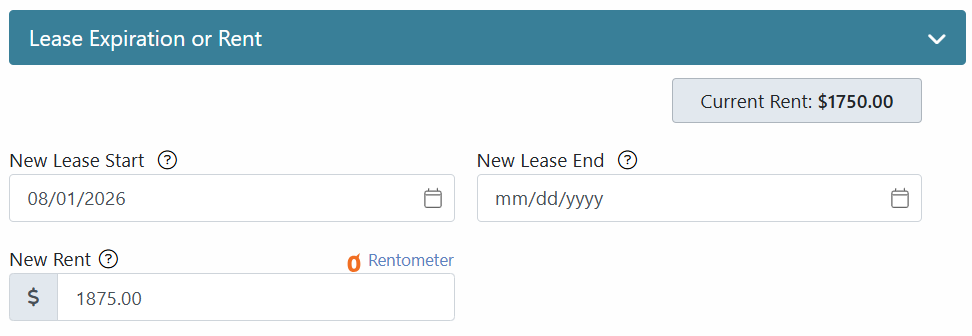
- Under Lease Expiration or Rent, click the Rentometer link next to New Rent
- Review the comparable rental rates
- Select a suggested rate to populate the New Rent field
-
Click Save Lease
Order a Rentometer Pro Report
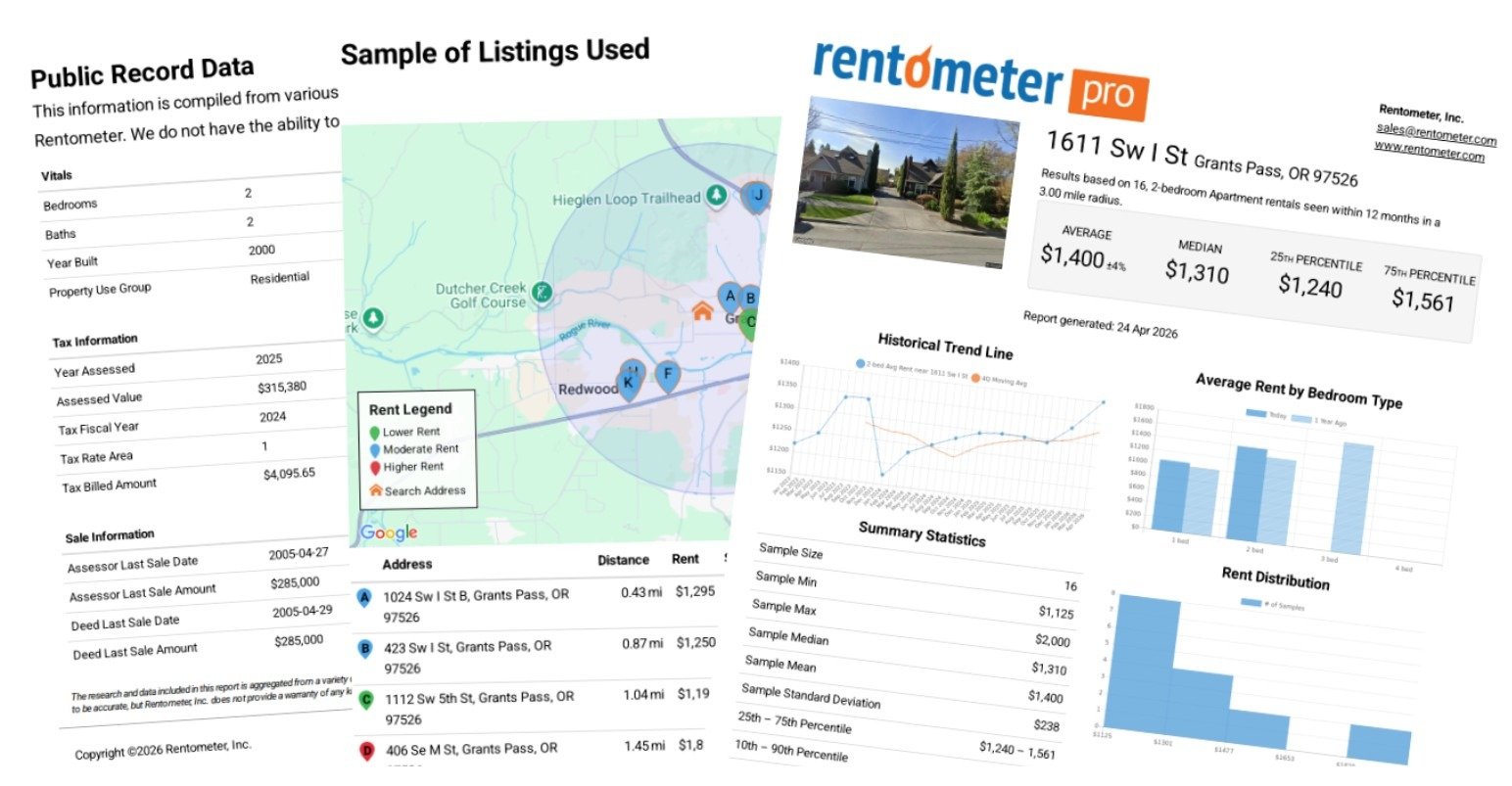
For more detailed market information, you can order a Rentometer Pro Report from any Rentometer comparison window.
To order a Rentometer Pro Report:
- Open a Rentometer comparison window from Edit Property, Edit Tenant, or Update Lease
- Click Order Pro Report for $1.00
- The report will generate within a few seconds
- Use the toolbar to modify, save, download, or print the report
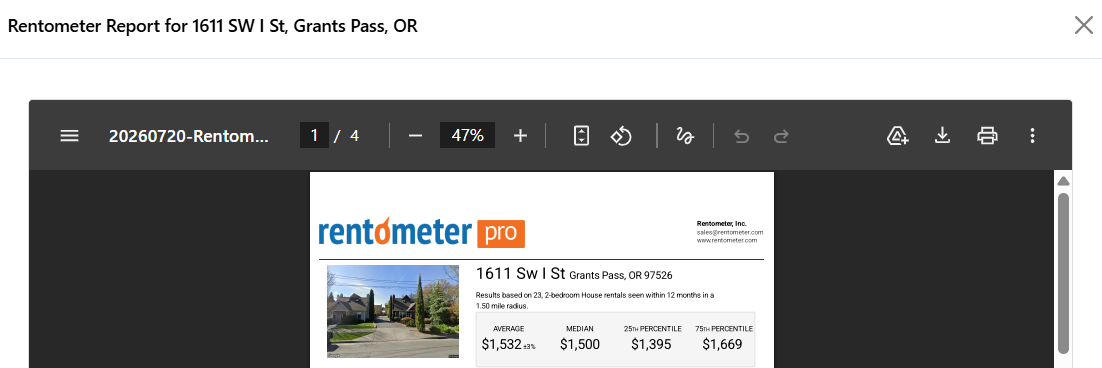
After the report has been ordered, the link will change from Order Rentometer Pro Report to Show Rentometer Pro Report. The report will remain available for a week, so you may want to download or save a copy for your records.
Important Notes
- Rentometer provides market insights and suggested rental rates, but does not automatically change rental amounts unless you select a suggested rate and save the update.
- Market data availability may vary by location.
- Some jurisdictions, such as California and New York, may restrict how market rent data derived from local listings can be used. Review applicable local and state regulations before applying rental rate changes.