Getting Started | Tenant Legal Liability (TLL) Insurance Coverage Verification
Rentec Direct's integration with SureVerify makes it easy to monitor and manage renters insurance requirements. The integration automates insurance verification, lets tenants purchase coverage through the tenant portal, and automatically enrolls tenants in a Tenant Legal Liability (TLL) insurance policy when required.
Want to see how it works? Watch the short SureVerify with Rentec Direct video for an overview.
Getting started is simple:
- Sync your properties
- Create your TLL policy
Once setup is complete, SureVerify helps manage insurance requirements and keeps tenant coverage information up to date.
Important: Tenant liability insurance requirements may vary by state and local jurisdiction. Before making insurance a lease requirement, consult your local landlord-tenant association or a real estate attorney to ensure your requirements and lease addendum comply with applicable laws in your area.
Sync Your Properties
An account administrator must enable SureVerify and select the properties to be included.
This short GIF walks through accessing Configure TLL Insurance and beginning setup.

In your Rentec Direct account:
- Click Settings
- Under Tools, click Utilities
-
Select Configure TLL Insurance
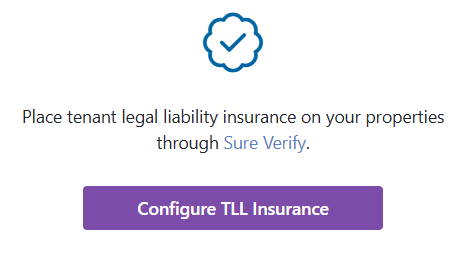
Create a TLL insurance policy in Rentec Direct
- Click Select properties to sync
-
Select the properties you want to include
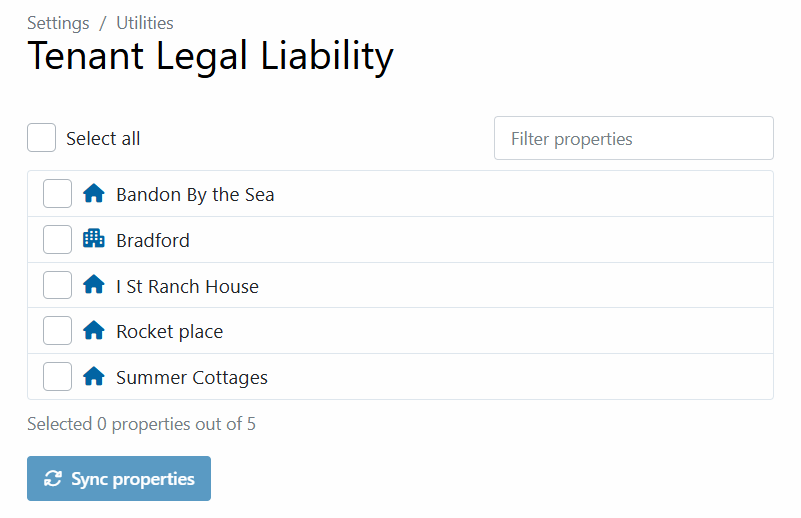
Sync Properties in Rentec Direct with SureVerify
- Click Sync properties
The sync may take a few minutes, depending on the number of properties. You can leave the page; the sync will continue processing, and you'll be notified when it's done.
Create Your TLL Policy
Once your properties finish syncing, you can create your TLL policy for the properties that require coverage.
Create as many TLL policies as needed to meet the insurance requirements for different groups of properties. Each policy can cover a specific selection of properties and coverage requirements.
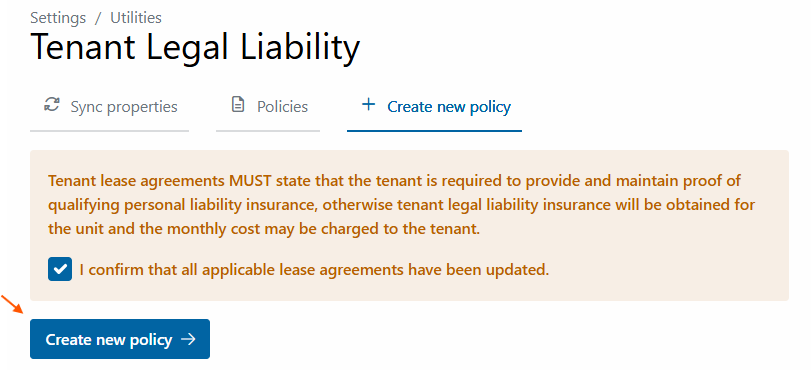
Before getting started: Make sure applicable lease agreements have been updated with the required insurance terms.
In your Rentec Direct account:
- Click Settings
- Under Tools, click Utilities
- Select Configure TLL Insurance
- Check the box to confirm: All applicable lease agreements have been updated to include your insurance requirements.
- Click Create New Policy
Choose Your Account Type
Select the option that matches your Rentec Direct account:
- Property Management Company for Rentec PM accounts
-
Owner / Operator Landlord for Rentec Pro accounts
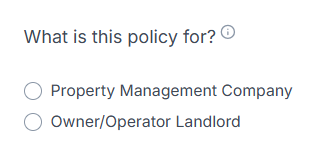
Indicate which type of Rentec Direct account you have
Review Your Information
- Review your business information and Primary Policy Contact information, and make any necessary updates.
These changes apply only to the TLL policy and do not change the Rentec Direct administrative information.

- Select the Effective date for the policy
Policies begin on the first of the month, and you can select a start date up to 90 days in the future.
- Click Get Started
Finalize Your Coverage
- Under Finalize your coverage, review the liability limit for your TLL policy. A quote is automatically provided.

- Add any additional coverages required by the lease. The quote updates automatically.
- Select the properties this TLL policy should cover.
The properties selected during the sync are shown here. You can change the selection for this policy.
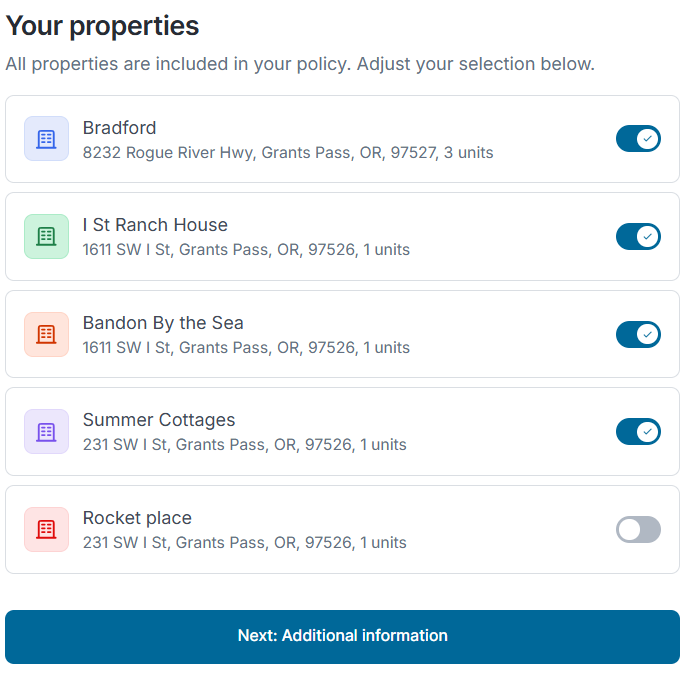
- Click Next: Additional information
- Answer the three required questions and review the Property Eligibility Checklist
- If your properties meet the requirements, check the confirmation box and click Next: Finalize
- Add your payment method, and check the Terms and Conditions box
- Click Save and Finish
You're All Set!
SureVerify will review the policy information. Once the policy is approved, the Renters Insurance Required input field in the property profile is automatically updated and locked to help maintain compliance.
What Happens When the Policy Takes Effect
Once the Property Manager Policy becomes effective, Rentec Direct emails tenants at covered properties with instructions to verify their existing renters insurance or purchase coverage through the Tenant Portal.
Tenants have 7 days to complete this step. If they do not verify or purchase coverage within that time, the Property Manager (TLL) insurance policy created for the property automatically takes effect.
What the Tenants Experience
Verifying insurance and purchasing insurance is a quick process through the tenant portal. The following steps will walk tenants through the process.
You can easily log in as the tenant to help walk them through the steps. Learn more about how to Log in as the Tenant.
In the Rentec Direct Tenant Portal:
- Click Summary
-
Click Purchase or Verify Insurance
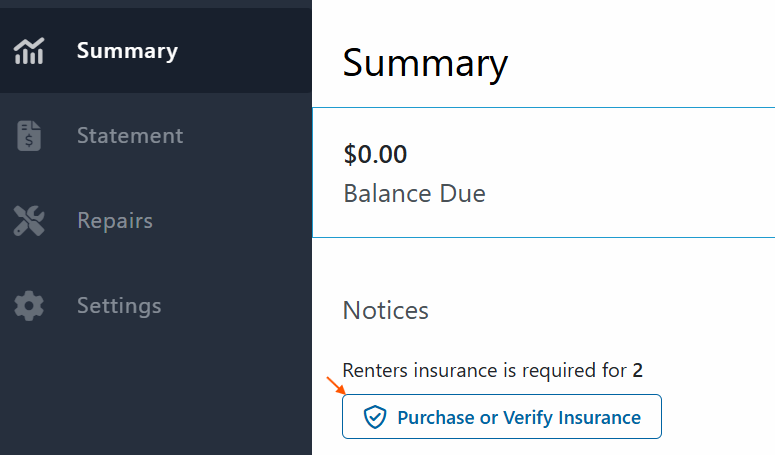
Tenants purchase insurance through their portal
- Review the Terms of Use and Privacy Policy, then check the box to acknowledge and agree to the terms.
-
Click I already have renters insurance to verify existing insurance coverage and add SureVerify as an "additional interest" or "interested party"
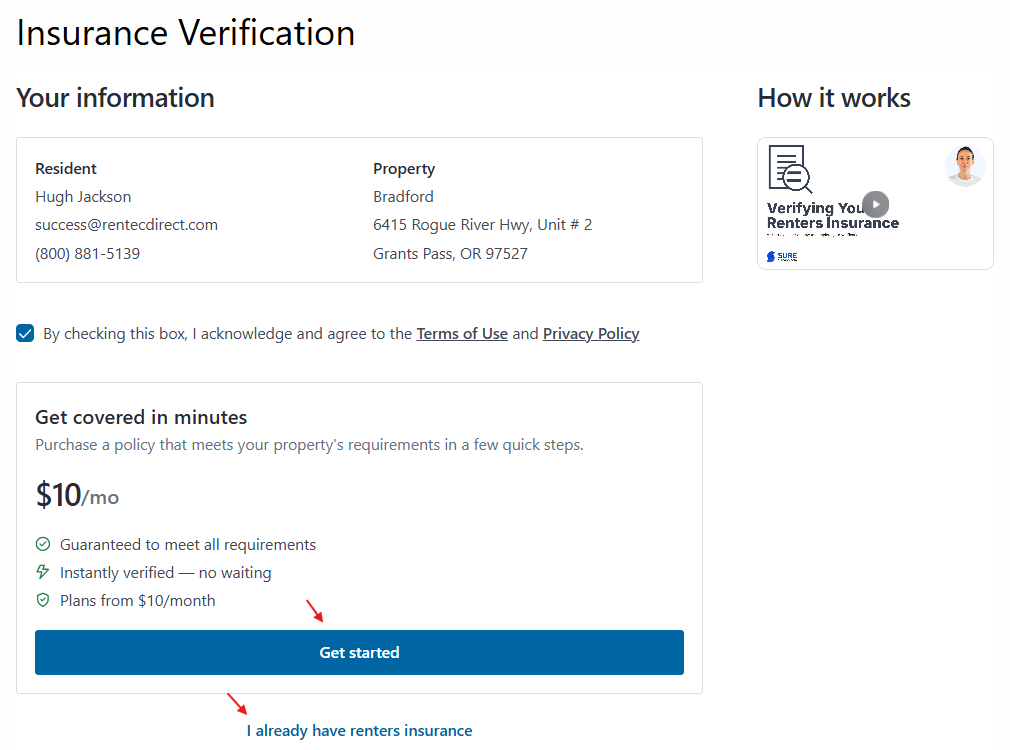
- Click Get started to purchase a policy if insurance is needed.
Tip: Watch the helpful How it Works video for more details.
View a Tenant's Insurance Status
The Edit Tenant page provides a comprehensive overview of each tenant's insurance status.
In your Rentec Direct account:
- Click on Tenants
- Right-click a tenant and select Edit Tenant
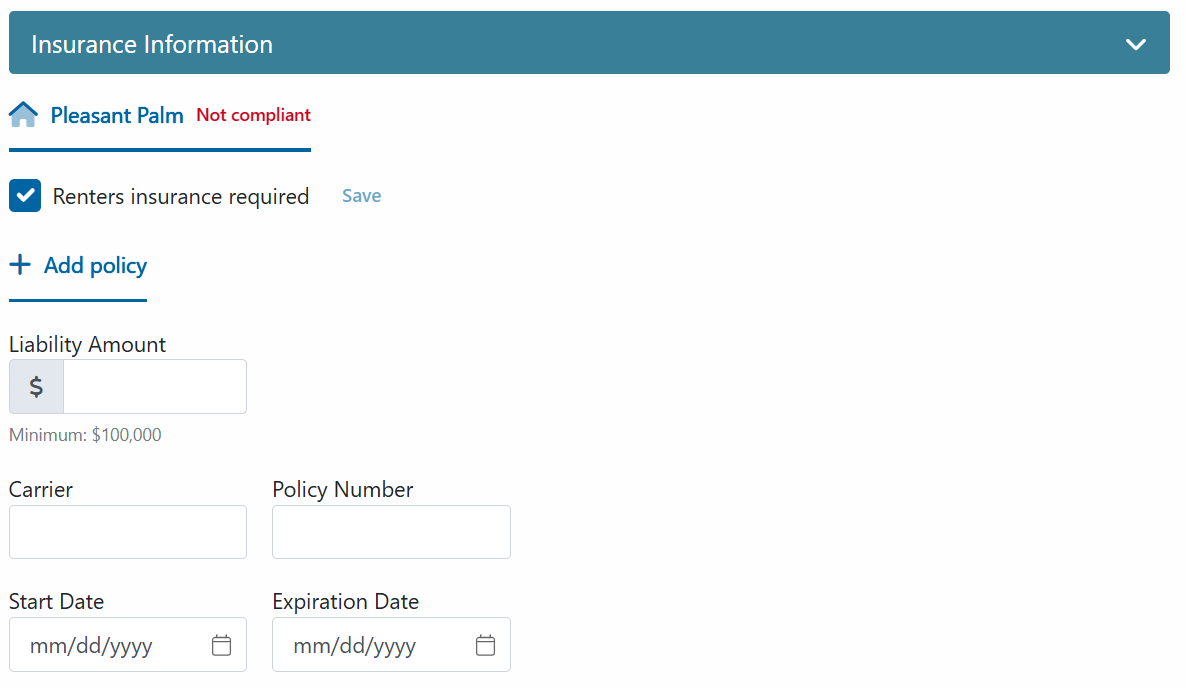
- Under Insurance Information, see the Enrollment status.
Once there's an active policy in place, you can access more information like:
- Manual Policies: Insurance records downloaded by the tenant or landlord
- Sure Policies: Policies purchased through the standard Sure integration
- Sure Verify Policies: Policies purchased or verified through SureVerify.