
Troubleshooting Recurring Transactions
Recurring transactions in Rentec Direct rely on several settings working together to post correctly.
If a recurring transaction isn't behaving as expected, it's usually casued by an incorrect setting, such as the Begin Date, Frequency, or Interval Day.
This article walks you through reviewing your recurring transaction and resolving the most common issues.
Jump to a section:
- Recurring Transaction Didn't Post
- Recurring Transaction Posted on the Wrong Day
- Recurring Transaction Posted Historical Transactions
- Recurring Transaction Posted the Wrong Amount
- Tenants Recurring Rent Posted Multiple Times
- Can I Enter Historical Rent Charges
Before You Begin
Every recurring transaction includes these scheduling settings:
- Begin Date - The date the recurring transaction begins posting.
- End Date (optional) - The date the recurring transaction stops posting.
- Frequency - How often the transaction posts (daily, weekly, bi-weekly, monthly, quarterly, or yearly).
- Interval Day - The day of the week or month the transaction posts based on the selected frequency.
You may find these articles helpful:
Notes:
- Existing recurring transactions can be reviewed and edited from the Recurring Transactions page.
- New recurring Rent or HOA charges for tenants currently in a property should be posted directly to Recurring Transactions.
- Other recurring charges and expenses should be created from the appropriate tenant or property ledger.
Review a Recurring Transaction
Before troubleshooting a recurring transaction, verify its settings.
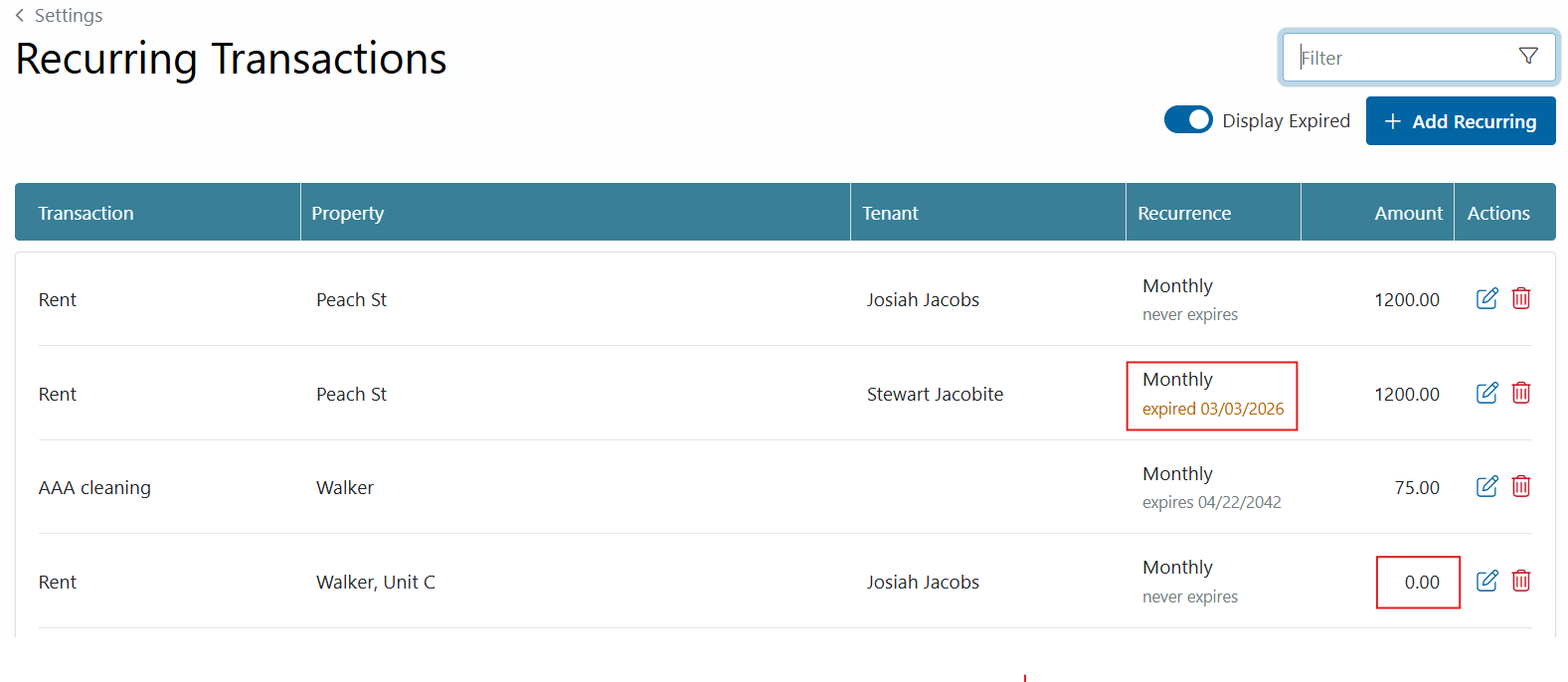
In your Rentec Direct account:
- Click Settings
- Under Financial, click Recurring Transactions
- Turn on Display Expired to include expired transactions if the transaction is not posting
- Locate the recurring transaction
- Verify:
- Transaction type
- Property
- Tenant (if applicable)
- Status is Active (Not expired)
- Amount
-
Click the Edit (pencil) icon
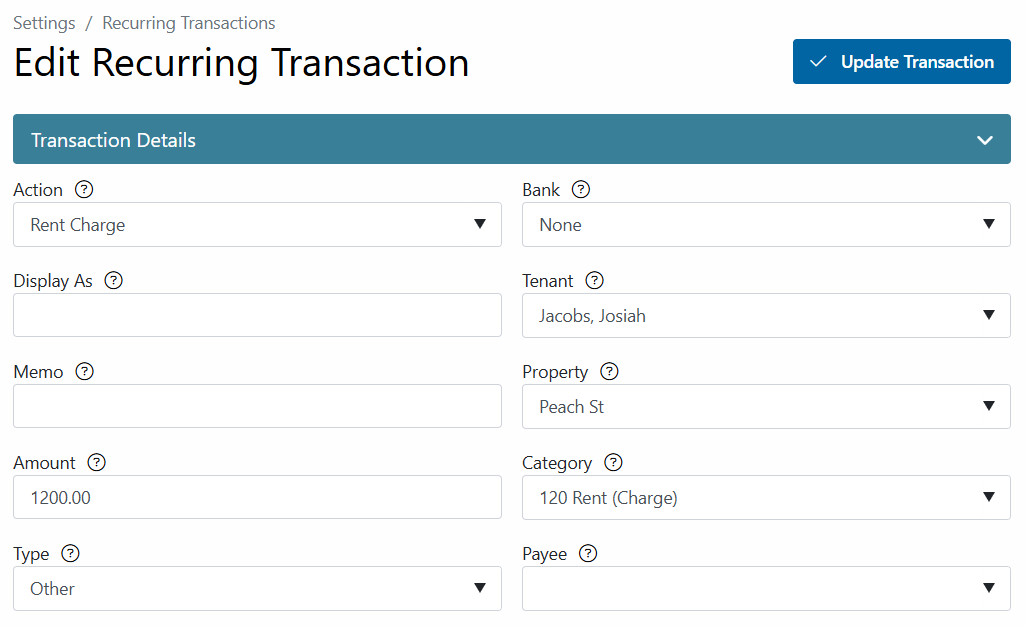
- Under Transaction Details
-
Verify the settings (particularly ones that apply to the issue you're trying to resolve)
Tip: Action should be set to Rent Charge for Rent / HOA recurring charges in order for rent-related automated functions to work, such as:
* Auto notifications to tenants
* Rent to post early if scheduled
- Under Date Range and Interval, verify the following:
- Interval/Frequency - How often the transaction should post.
- Begin Date - When the recurring transaction should begin.
- Interval Day - Which day of the week or month, within the selected Interval/Frequency, the transaction should post.
- End Date - When the recurring transaction should stop posting (if applicable).
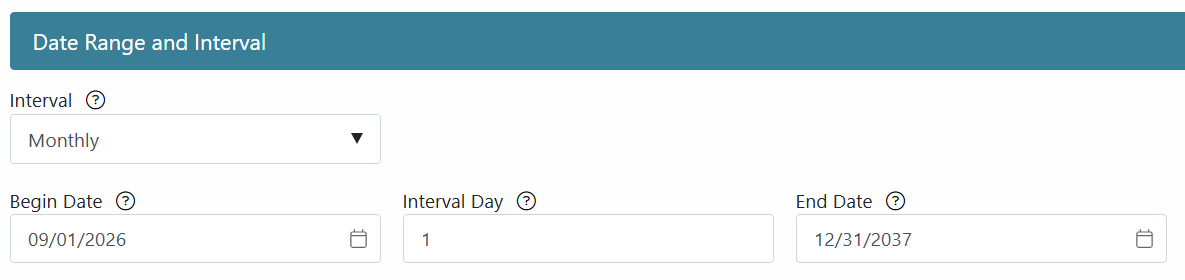
Tip: Hover over the? icon next to a field to learn more about that setting.
Issues
A Recurring Transaction Didn't Post
If a recurring transaction didn't post, review the Date Range and Interval settings. The most common causes are:
- The Begin Date hasn't been reached yet.
- The End Date has already passed (expired).
- The Interval Day hasn't occurred yet.
Solution:
- Post the individual transaction that didn't post to the ledger to bring it current, then
- Correct the recurring transaction settings as needed with a future begin date
If several settings need to be changed, it may be easier to delete the recurring transaction and create a new one from the ledger.
A Recurring Transaction Posted on the Wrong Day
The most common causes for a transaction to post on the wrong day are:
- The Begin Date hasn't been reached yet.
- The wrong Interval Day was selected.
Solution:
- Edit the posted transaction, then
- Review and edit the recurring transaction settings if needed to ensure future transactions post on the correct schedule.
Recurring Transaction Posted Historical Charges
Recurring transactions use the Begin Date as the starting point for generating transactions.
For example, if you create a monthly recurring transaction with a Begin Date of 01/01/2024, Rentec Direct automatically posts transactions beginning January 1, 2024, and continues posting each monthly occurrence through the current date.

Solution:
Delete the unwanted historical transactions from the ledger. The recurring transaction will continue posting future transactions according to its schedule.
Important Note: Updating the Begin Date or Frequency does not remove transactions that have already been posted.
Recurring Transaction Posted the Wrong Dollar Amount
If a recurring transaction posted the incorrect dollar amount, review the recurring transaction to verify the Amount field.
Solution
- Correct the posted ledger transaction, then
- Correct the Amount field in the recurring transaction so future postings use the correct amount
If necessary, delete the recurring transaction and create a new one.
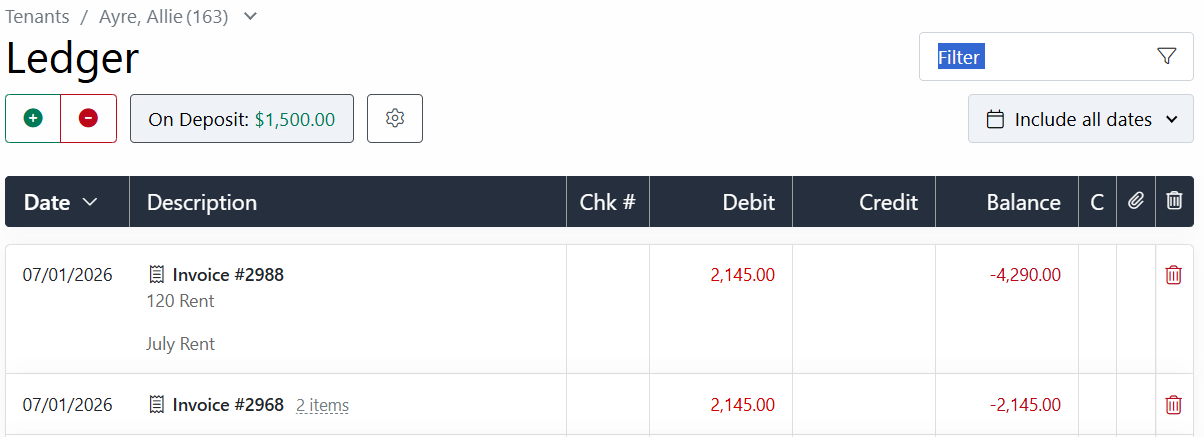
Recurring Rent Posted Multiple Times
The most common reasons a charge or expense posts more than once are:
- Two recurring transactions are set up for the same transaction.
- A transaction was entered manually in addition to a recurring transaction.
Example:
Solution
- Delete the duplicate transaction from the tenant ledger
- Review the recurring transactions to determine whether multiple recurring charges exist.
- If duplicate recurring transactions are found:
- Compare the transaction details.
- Delete the duplicate recurring transaction.
- If only one recurring transaction exists:
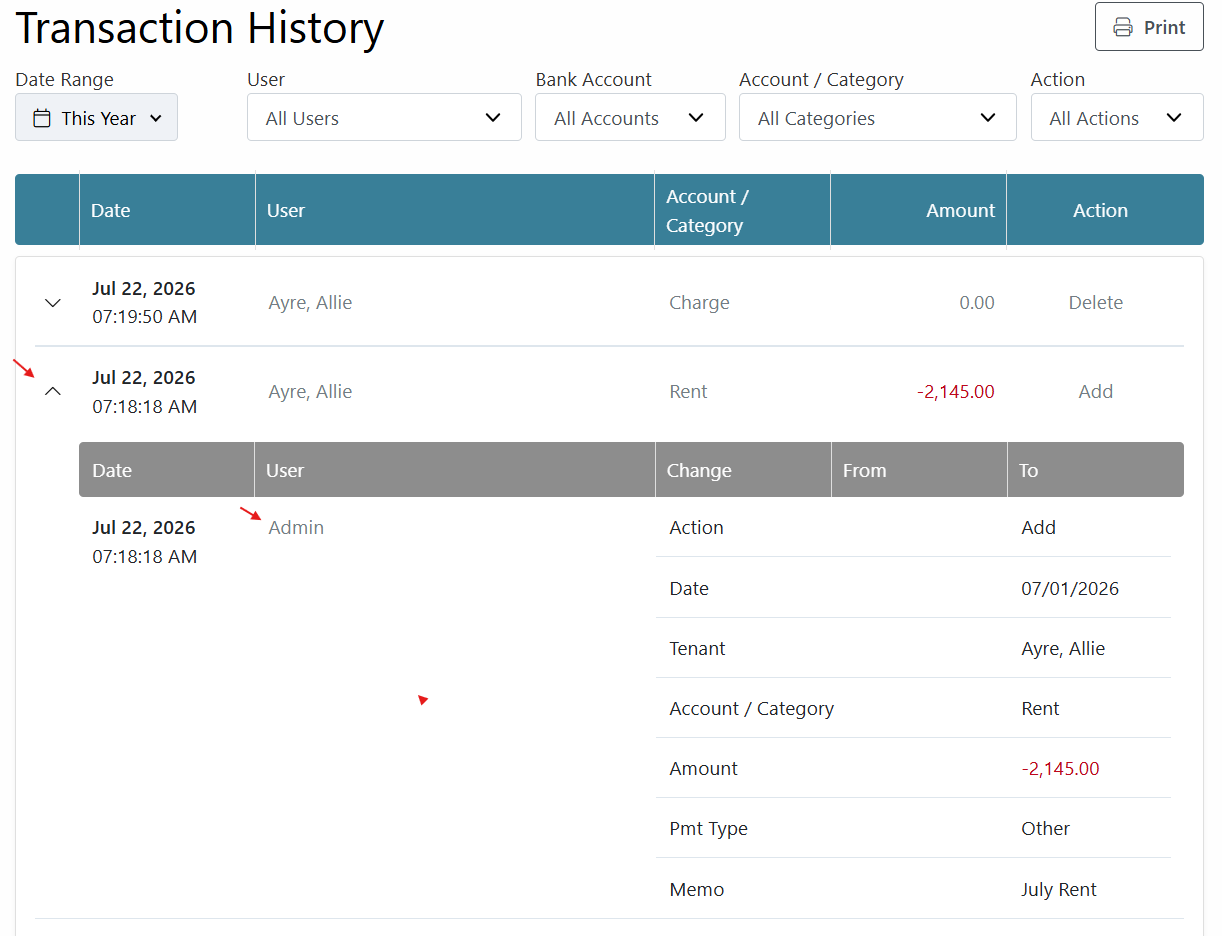
- Review the transaction history to determine whether the duplicate charge was entered manually.
Can I Enter Historical Recurring Transactions?
Yes. Rentec Direct can automatically create historical recurring charges or expenses.
To create historical transactions, when creating a recurring transaction on a ledger:
- Enter the desired historical Begin Date
- Select the appropriate Frequency
- Post the transaction
System Note:
When entering past recurring transactions
- If you enter a historic beginning date, a recurring transaction will post retroactively from that date to present.
- If you enter an incorrect frequency date and need to make changes, the system will not delete those historic charges. They will need to be removed manually.
- Past recurring transactions can be entered with an end date if the end date was within the past three months